I Used Claude Code for 30 Days: 7 Practical Discoveries (Still Learning)
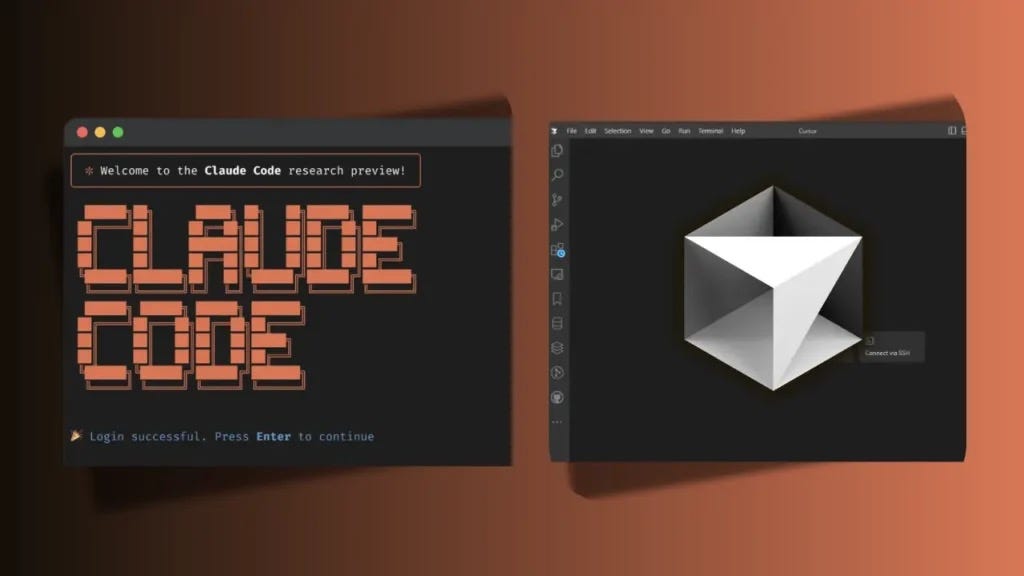
Claude Code or Cursor

Let me be upfront: 30 days isn't enough time to master any development tool, and I'm definitely still learning Claude Code. But after using it alongside Cursor for a month, I've discovered some genuinely interesting capabilities that are worth sharing — even if I'm not ready to declare it revolutionary just yet.
I'm Alek, a Product Manager at C&C (an Apple Premium Partner across 8 European countries), where I build internal tools for retail, education, and B2B teams. I work daily with Vue, Nuxt, Supabase, and n8n, mostly using AI-assisted coding through Cursor and now Claude Code. This comparison isn't academic — it's based on real projects with real deadlines.
The honest truth? Claude Code has some brilliant moments and some frustrating limitations. It's not about replacing your current tools; it's about understanding when each tool shines. Here's what I've learned so far.
Discovery #1: The terminal workflow is both liberating and limiting
Coming from Cursor’s polished GUI, Claude Code’s command-line interface initially felt like a step backward. No image previews, no smooth scrolling, no visual diff highlights — just pure terminal interaction. But here’s what I didn’t expect: this constraint actually forces you to think differently about coding.
In Cursor, I often get distracted by UI elements, switching between tabs, managing multiple panels. Claude Code strips all that away. You describe what you want, Claude does it, you review the changes. It’s remarkably focused, almost meditative.
The liberating part: Claude Code inherits your entire shell environment. Every alias, script, and environment variable is available. I can pipe logs directly to Claude (tail -f error.log | claude "analyze this error"), chain commands together, and integrate Claude into build scripts. This is impossible with GUI-based tools.
The limiting part: No mouse scrolling means reviewing large diffs is tedious. The learning curve is steeper than it needs to be — simple tasks like navigating command history require relearning muscle memory.
After 30 days, I use both tools: Cursor for UI work and quick edits, Claude Code for complex logic and system-level tasks. This isn’t elegant, but it’s honest about each tool’s strengths.
Discovery #2: Specialized agents are the killer feature (when they work)
This is where Claude Code becomes genuinely impressive. Instead of one generic AI assistant, you can create specialized “subagents” — think of them as expert consultants you can summon for specific tasks.
Here are the three specialized agents I’ve built and actually use:
Naive Library Expert: I work with Naïve UI (a Vue component library) frequently. I created a subagent with deep knowledge of Naïve’s patterns, common pitfalls, and best practices. Instead of Claude giving generic Vue advice, this agent knows Naïve’s specific quirks — like how n-button handles loading states differently from standard buttons.
AgGrid Expert: For complex data tables, I have an AgGrid-specialized agent. It knows the licensing differences, performance optimization techniques, and how to handle the endless configuration options. When I ask “make this table sortable with custom cell renderers,” it doesn’t give me generic advice — it provides AgGrid-specific code.
i18n Grep Translator: This one’s my favorite. I created an agent that only uses grep to find translation keys, then provides translations in multiple languages. It’s incredibly fast and consistent, unlike generic translation approaches that miss context or create inconsistent key naming.
How to set this up (the technical bit): Create a .claude/agents/naive-expert.md file with specific instructions:
# Naïve UI Expert Agent
You are an expert in Naïve UI for Vue 3. You know:
- All component APIs and props
- Common patterns and anti-patterns
- Performance considerations
- Theme customization approaches
When suggesting code, always use Naïve UI components and patterns.The reality check: Setting up these agents takes time. Each one needs careful instructions, testing, and refinement. I spent about 6 hours creating the three agents above. But once they’re working, they’re incredibly valuable for domain-specific tasks.
Not every agent works perfectly. I tried creating a “Supabase expert” but found it too broad — the agent gave conflicting advice between client and server-side patterns. Specialization works best when it’s narrow and focused.
Discovery #3: Context management is both blessing and curse
Claude Code’s context management is sophisticated but requires active thinking. Unlike Cursor, which hides context complexity behind a GUI, Claude Code makes you confront it directly.
The 200K token context window is real — I’ve successfully worked with codebases that broke Cursor’s limits. But managing this context intelligently separates productive sessions from expensive, confused ones.
What I learned about /clear and /compact:
/clear completely wipes conversation history. I use this when switching between completely different projects or when Claude gets confused by mixed contexts. Think of it as restarting a conversation.
/compact is more nuanced. It summarizes the conversation while preserving important decisions and context. This is useful after 4-5 prompts when you're deep in a feature but approaching context limits.
My practical pattern:
Start with a focused request
After 3–4 exchanges, check context usage
Use
/compactif context is getting cluttered but the topic is relatedUse
/clearwhen switching to unrelated work
The challenge: You need to actively monitor context usage. Claude doesn’t automatically manage this like Cursor attempts to. You become responsible for keeping conversations coherent and efficient.
Real example: While refactoring a complex Vue component, I reached context limits. /compact preserve the component structure decisions and API patterns let me continue with the essential context while dropping verbose code examples. Cursor would have just failed with a context error.
Discovery #4: The notification hook changed my development rhythm
This discovery surprised me the most. Claude Code’s hook system lets you run custom scripts at specific points in the AI interaction. I created a simple hook that sends notifications to my devices, and it fundamentally changed how I work on longer tasks.
Here’s what I set up:
A PostResponse hook that sends notifications via Pushover
Notifications arrive on my Nothing Phone 3 and Garmin Epix Pro 2
When Claude completes a long-running task, I get notified instantly
The technical setup (simplified for non-developers): Claude Code can run a script every time it finishes responding. I wrote a one-line script that sends a message to Pushover (a notification service), which then pushes to all my devices.
bash
# .claude/hooks/post-response.sh
curl -s -F "token=YOUR_TOKEN" -F "user=YOUR_USER" -F "message=Claude task completed" https://api.pushover.net/1/messages.json
Why this matters: Long refactoring tasks or complex debugging can take 2–5 minutes. Instead of sitting at the terminal waiting, I can start other tasks and get notified when Claude finishes. This changed my multitasking completely.
I often trigger a complex Claude task, then switch to email or project management. When my watch buzzes, I know Claude has finished and I can review the results. It sounds simple, but it eliminated the frustrating “is it done yet?” checking.
The limitation: This only works for terminal-based workflows. Cursor users can’t replicate this integration because they’re locked into the GUI environment.
Discovery #5: Performance varies dramatically by task type
After 30 days of side-by-side usage, I’ve identified clear patterns about when Claude Code performs well and when it struggles.
Claude Code excels at:
Complex refactoring across multiple files: I successfully refactored an entire authentication system spanning 12 files. Cursor crashed twice during similar tasks.
System-level understanding: When debugging environment issues or deployment problems, Claude Code’s access to the full terminal environment is invaluable.
Autonomous problem-solving: Give Claude a high-level goal (“optimize this API’s performance”), and it can work independently for 5–10 minutes, exploring different approaches.
Cursor wins for:
Quick single-file edits: Cursor’s inline suggestions are faster for small changes.
Visual feedback: When working with CSS or UI components, Cursor’s visual diff is superior.
Immediate responsiveness: Cursor provides instant feedback; Claude Code requires waiting for complete responses.
Performance comparison (my actual metrics):
Complex debugging: Claude Code ~40% faster (less back-and-forth)
Simple edits: Cursor ~60% faster (immediate suggestions)
Large refactoring: Claude Code ~2x more successful (doesn’t hit context limits)
UI adjustments: Cursor ~3x faster (visual feedback loop)
The real insight: These tools serve different cognitive modes. Cursor is better for exploratory, iterative work. Claude Code is better for focused, goal-directed tasks.
Discovery #6: The cost and speed equation is complex
Let’s talk money and time — the practical realities of using Claude Code daily.
Cost considerations: Claude Code uses a usage-based pricing model ($20–100+ per month depending on usage). After tracking my usage for 30 days:
Heavy refactoring days: $8–15
Normal development days: $2–5
Planning/architecture days: $1–3
This is significantly higher than Cursor’s $20/month flat rate, but the calculation isn’t straightforward. If Claude Code saves 2–3 hours on a complex task, the cost justifies itself for consulting rates.
Speed patterns I discovered:
Startup time: Claude Code takes 15–30 seconds to load context and start responding. Cursor is instant.
Think time: Claude Code’s “thinking” modes (30 seconds to 10 minutes) can solve problems that would take hours of iteration in other tools.
Execution time: Once Claude starts working, it often completes tasks faster than the back-and-forth required with Cursor.
Real example: Debugging a complex race condition:
Cursor approach: 45 minutes of iterative debugging, multiple conversations
Claude Code approach: 8 minutes of “thinking” + 12 minutes of implementation = 20 minutes total
The Claude Code approach was faster but required waiting for the AI to complete its reasoning. Different workflows, different strengths.
Real scenario with Supabase integration: When debugging a connection issue, I could pipe the entire error log to Claude and get an explanation without copy-pasting. But when the fix involved updating a Vue component’s styling, I had to describe the visual problem in words, which felt clunky.
Discovery #7: The status line provides crucial visibility (but comes last)
I’m putting this discovery last because it’s the least exciting but most practically useful. The status line feature shows real-time information about your Claude Code session directly in the terminal.
What the status line shows (and why it matters):
Current context usage as a percentage
Active model and estimated costs
Project directory and git status
Custom metrics via bash scripts
Think of it like a car’s dashboard — you don’t stare at it constantly, but having fuel level, speed, and engine temperature visible prevents problems.
The configuration lives in .claude/settings.json:
json
{
  "statusline": {
    "show_context": true,
    "show_cost": true,
    "show_model": true,
    "custom_commands": ["git status --porcelain | wc -l"]
  }
}
Why this prevents expensive mistakes: Without the status line, I was frequently hitting context limits or running expensive operations without realizing it. The visual feedback helps manage both technical constraints and costs.
Real example: During a large refactoring, I noticed context usage climbing to 85%. Instead of continuing and potentially hitting limits, I used /compact to compress the conversation and continued productively.
This isn’t glamorous, but it’s the difference between controlled usage and surprise bills.
The honest conclusion: It’s complicated
After 30 days, I don’t have a simple answer about Claude Code. It’s not universally better or worse than alternatives — it’s different enough to require learning new patterns and workflows.
What I’m confident about:
The specialized agent system is genuinely valuable for domain expertise
Terminal integration enables workflows impossible with GUI tools
Context management, while complex, provides more control
The notification system changed how I approach longer tasks
What I’m still uncertain about:
Whether the learning curve pays off for occasional users
How the cost model scales for heavy usage
Whether the terminal-first approach is sustainable for visual work
How well this approach works for team environments
My current workflow (the hybrid reality): I use Claude Code integrated within Cursor as a plugin. This approach gives me:
Claude Code’s specialized agents and terminal integration
Cursor’s visual interface and file management
Git extensions and drag-and-drop context handling
The ability to switch between terminal and GUI modes seamlessly
This hybrid setup isn’t the clean “one tool to rule them all” story that makes for good marketing, but it’s the most productive approach I’ve found. The future might belong to terminal-first AI development, but for now, combining both approaches covers all the bases.
If you’re considering trying Claude Code:
Start with one specialized agent for your most common domain
Set up the notification hook if you work on longer tasks
Learn the context management commands (
/clear,/compact)Configure the status line for visibility
Give yourself 2–3 weeks to develop new muscle memory
The most important lesson? Don’t expect to replace your current tools immediately. Instead, find specific use cases where Claude Code’s unique strengths align with your actual work patterns.
Claude Code is evolving rapidly, and my understanding will likely change over the next 30 days. But these discoveries provide a realistic foundation for anyone considering whether terminal-based AI development fits their workflow.
It’s early days for all these tools. The question isn’t which one is “best” — it’s which one helps you solve your specific problems most effectively.
Hi Alek, thanks for the insights. I liked the advice regarding sub agents. Noticed the same as well and created one for Mantine. I also hooked it up with context7 to fetch fresh info if necessary.
Another use case for for subagents (according to Anthropic) is to use them during exploration phase to not bloat the context window of the main agent